# BLUE IRIS -> Run Program/Script examples
# --------------------------------------------------------------------
# Common PowerShell command lines for use in Blue Iris "Run a program/script" actions.
# See numbered notes at the end for details (e.g., [1] Non-blocking, [2] Macros, etc.)
# --------------------------------------------------------------------
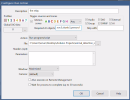
# In the Blue Iris "Run program/script" dialog:
#   File:        (first line)
#   Parameters:  (second line)

# --- BASIC ---
Run a simple script by path
File: powershell.exe
Parameters: -File "C:\ps_scripts\myscript.ps1"

Run a script with arguments
File: powershell.exe
Parameters: -File "C:\ps_scripts\myscript.ps1" -Cam "FrontEntry" -Event "Motion"

# --- RELIABILITY IMPROVEMENTS ---
Force 64-bit PowerShell 5.1
File: C:\Windows\System32\WindowsPowerShell\v1.0\powershell.exe
Parameters: -File "C:\ps_scripts\myscript.ps1"

Use PowerShell 7 if installed
File: "C:\Program Files\PowerShell\7\pwsh.exe"
Parameters: -File "C:\ps_scripts\myscript.ps1"

# --- WITH BLUE IRIS MACROS [2] ---
Pass BI macros to the script
File: powershell.exe
Parameters: -File "C:\ps_scripts\myscript.ps1" -Cam "&CAM" -Event "&TYPE" -Time "&TIME"

Log script output for debugging [3]
File: powershell.exe
Parameters: -NoProfile -ExecutionPolicy Bypass -File "C:\ps_scripts\myscript.ps1" >> "C:\ps_logs\myscript.log" 2>&1

# --- ADVANCED / NON-BLOCKING [1] ---
Run non-blocking (BI continues immediately)
File: cmd.exe
Parameters: /c start "" powershell.exe -NoProfile -ExecutionPolicy Bypass -File "C:\ps_scripts\myscript.ps1"

Pass multiple arguments safely with -Command
File: powershell.exe
Parameters: -Command "& { & 'C:\ps_scripts\myscript.ps1' -Cam '&CAM' -AlertID '&ALERT_DB' -Path 'C:\temp\' }"

Run elevated (Administrator privileges) [4]
File: powershell.exe
Parameters: -Command "Start-Process powershell -Verb RunAs -ArgumentList '-File ""C:\ps_scripts\myscript.ps1""'"

Start asynchronous background job [1]
File: powershell.exe
Parameters: -Command "Start-Job -ScriptBlock { & 'C:\ps_scripts\myscript.ps1' -Cam '&CAM' }"

# --- RECOMMENDED TEMPLATE (non-blocking, macro-safe) ---
File: cmd.exe
Parameters: /c start "" powershell.exe -NoProfile -ExecutionPolicy Bypass -File "C:\ps_scripts\myscript.ps1" -Cam "&CAM" -Event "&TYPE" -Time "&TIME"


# --------------------------------------------------------------------
# NOTES & TIPS
# --------------------------------------------------------------------
# [1] NON-BLOCKING MODES
# Blue Iris normally waits for a script to finish before continuing.
# When launched via "cmd.exe /c start", the script runs independently
# (non-blocking) and BI continues immediately. Consider using this
# option for long-running tasks.
#
# ALTERNATIVE:
# The BI 'Run a program' Action dialog checkbox "Wait for process to
# complete (up to 30 seconds)" controls this behavior. A typical use case
# is to ENABLE it to prevent race conditions -- for example, when BI creates
# a temporary file that your long-running script must access before it is
# automatically deleted by Blue Iris.

# [2] BLUE IRIS MACROS
# You can pass camera/event data into PowerShell by inserting BI macros
# like &CAM, &TYPE, &TIME, &ALERT_DB in your Parameters line.
# BI automatically substitutes their current values.

# [3] WHY USE "-NoProfile -ExecutionPolicy Bypass"?
# -NoProfile: Skips loading your user PowerShell profile for faster,
#             cleaner execution.
# -ExecutionPolicy Bypass: Overrides the Windows policy JUST FOR THIS RUN,
#             allowing scripts to execute even if your system is restricted.
# Together they make Blue Iris actions faster and more predictable.
#
# ALTERNATIVE:
# To avoid typing "-ExecutionPolicy Bypass" in every action, you can set
# a more permissive DEFAULT POLICY FOR YOUR PC:
#   Open PowerShell as Administrator and run the following command:
#       Set-ExecutionPolicy RemoteSigned
# Then confirm when prompted. Locally created scripts will now run normally.

# [4] ADMIN PRIVILEGES
# The "Run elevated" example uses "Start-Process -Verb RunAs" to prompt
# for elevation. It is rarely needed if Blue Iris is configured to
# "Always run as Windows Admin" or if the BI service runs under a
# Windows administrator account (AS RECOMMENDED BY THE OFFICIAL BI HELP PDF).
# Running BI under the LocalSystem account is HIGHLY DISCOURAGED because it may
# limit access to antivirus, storage, and network shares.

# --------------------------------------------------------------------
# END