Windows startup screen, no remote access

Wen

Getting the hang of it
Aug 24, 2015
94
31
My server that runs BI is downstairs. Windows 11 home.

That server is set to restart every morning at 3 AM. For several years, first thing in the morning, I was able to access the server via the Android app, or UI3, or Teamviewer.

Now, after the server restarts, it won't allow access until the keyboard on the server receives a key press. How do I fix that so the server is always ready for remote access.

I can't access the server with chrome remote desktop or teamviewer until I wake up the server with a key press.

I have to go down to the server and enter the pin, and then I can connect remotely with a variety of apps.

Thanks in advance......
 
I assume you are running BI as a service? Keep in mind if you recently updated to BI6 you will need to select the run as service option again.
 
Not running BI6 and service is running correctly in BI5. Also, I get alerts on my android when a camera trips, I just can't get past the first Windows screen with out tapping a key, then I can enter my pin.

Thanks.
 
I have used Netplwiz in the past to bypass and go into windows directly.
 
Not running BI6 and service is running correctly in BI5. Also, I get alerts on my android when a camera trips, I just can't get past the first Windows screen with out tapping a key, then I can enter my pin.

Thanks.
You could try switching to a local account and ditch the Microsoft login pin, it could be that the account that is starting the service has no authority until the login process is completed. Or perhaps just adding a local admin account that is used to start the service will also work!
 
Thank you Bruce. I'm running Blue Iris as a local account on services. Have for a long time...

I appreciate your suggestion..

It seems like some is not seeing the remote login request. Once I manually login to WIndows with my pin, I can then access the Blue Iris program on my server from my android.
 
  • Like
Reactions: Bruce_H
Did you just have a windows update? The latest update now gives you this nag screen when trying to remote in to it.:

Screenshot 2026-04-19 101407.png

There is a registry hack that works great to get rid of it:

Open regedit (Run as admin -> regedit). Navigate to HKEY_LOCAL_MACHINE\SOFTWARE\Policies\Microsoft\Windows NT\Terminal Services\Client Right-click, choose New > DWORD (32-bit) Value. Name it RedirectionWarningDialogVersion Set the value to 1.

And again, this may have nothing to do with your issue, just grasping :)
 
I haven't seen the "nag screen"... I just need windows to boot where it can "hear and accept" incoming remote requests.

Once I manually start windows with my PIN< it's good until it reboots.

Appreciate your time sir....
 
Surprised nobody has asked but why do you need to restart the server each night? Also if there is a reason why not restart during the day when the low life levels are low?

My BI server sits in the loft/attic space with no keyboard/mouse or monitor connected and I've set it in the BIOS to ignore the lack of keyboard and to auto powerup on power loss. The only time it gets restarted is after manually installing Windows Updates or if I need to for some other reason. I do have a local account, so no MS online account and even after a power loss the server will boot up with no issues except when I goof it all up in which case I have to bring it down, fix the issue and then put it back.

Could the issue you're having be related to using Home Edition? MS with some of the latest updates have made changes to the RDP service so am wondering if that might be related but from what little I know :) this change was made to all flavours/editions of Windows?

Thing to try is get rid of the PIN, create a local admin account and assign that to the BI service, you might have to arse about with file/folder perms to ensure that the new local account has access to the files/folder that BI uses but that should be easy enough to do.
 
  • Like
Reactions: Bruce_H
Update:

Good morning.
Thank you to all that took a whack at finding a solution. I'm (we're) getting closer to a fix.

Just to recap, I can't connect to my BI server from my Android phone. The BI android app times out showing unable to connect, and the UI3 says Unauthorized.

Once I click on the BI Icon on my server, then for the rest of the day, or until the server reboots, I have complete access via android and UI3.


I noticed that I can log into my server with my laptop with out issues. And I can log into my server from my phone.


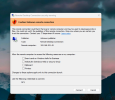
So, when I log into my server from my laptop and click on the BI icon I get a popup that say to runs as administrator
View attachment 243291


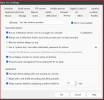
Run as administrator is selected in the BI startup tab.

Services is running BI as localsystem, I've tried normal start and delayed start.

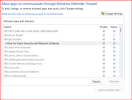
I've verified that the firewall is set to allow BI in and out.

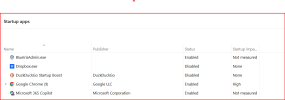
I've added Blueirisadmin.exe to the start up folder.


So, thank you to all that have taken time to assist.

Tinman. I don't have a good answer for your question. But it's be a very reliable setup for several years.
 

Attachments

  • Screenshot 2026-05-09 065750.png
    Screenshot 2026-05-09 065750.png
    37.1 KB · Views: 6
  • Screenshot 2026-05-09 065500.png
    Screenshot 2026-05-09 065500.png
    52.9 KB · Views: 6
  • Screenshot 2026-05-09 065354.png
    Screenshot 2026-05-09 065354.png
    23.4 KB · Views: 6
  • Screenshot 2026-05-09 035437 - Copy.png
    Screenshot 2026-05-09 035437 - Copy.png
    13.9 KB · Views: 6
I would set the BI service to run as an admin local user, the system account may not have the ability to run the service properly and interact with the program and start the web service properly!
There is no need to have Blueirisadmin.exe running on startup as you will likely get a prompt from the system to allow it run unless you have disabled the prompts, and it will wait for a key press before it launches; but perhaps you always have it open on the desktop anyway!
 
@Wen I would recommend creating a local user admin account (don't use a Microsoft account on your server, at least for Blue Iris), set its login password normally (via [Ctrl]+[Alt]+[Delete] -> Change a password; don't use PIN or any other sign in method), and then set the Blue Iris service to start using that account/password combination. Keep in mind that if you change your Windows login password, it'll break the Blue Iris service and you'll have to disable it and reenable it, typing in the new credentials. If you do this, it should work. I've never encountered the issues you describe above. Also, I would recommend discontinuing use of TeamViewer and using Jump Desktop instead—unless you're paying big bucks, TeamViewer will become unusable at some point, especially if you're using it frequently to debug issues like this. I have not encountered the TeamViewer issue you mention either—logging in via Jump Desktop normally acts just like physically logging in on the physical PC.